
Schedule an Appointment

Several offices on campus use Navigate360 for appointment scheduling, this includes all undergraduate academic advising units across campus. Appointments can be scheduled through the Navigate360 Student website as well as the LUC Navigate360 Student app (Apple/Android). Below you will find step by step instructions for scheduling an appointment.

Using Navigate360 Student Website

  1. Access the Navigate360 Student website via www.luc.edu/navigate or luc.navigate.eab.com.
  2. Once you've logging with your LUC SSO credentials, click the "Appointments" tab on the left side
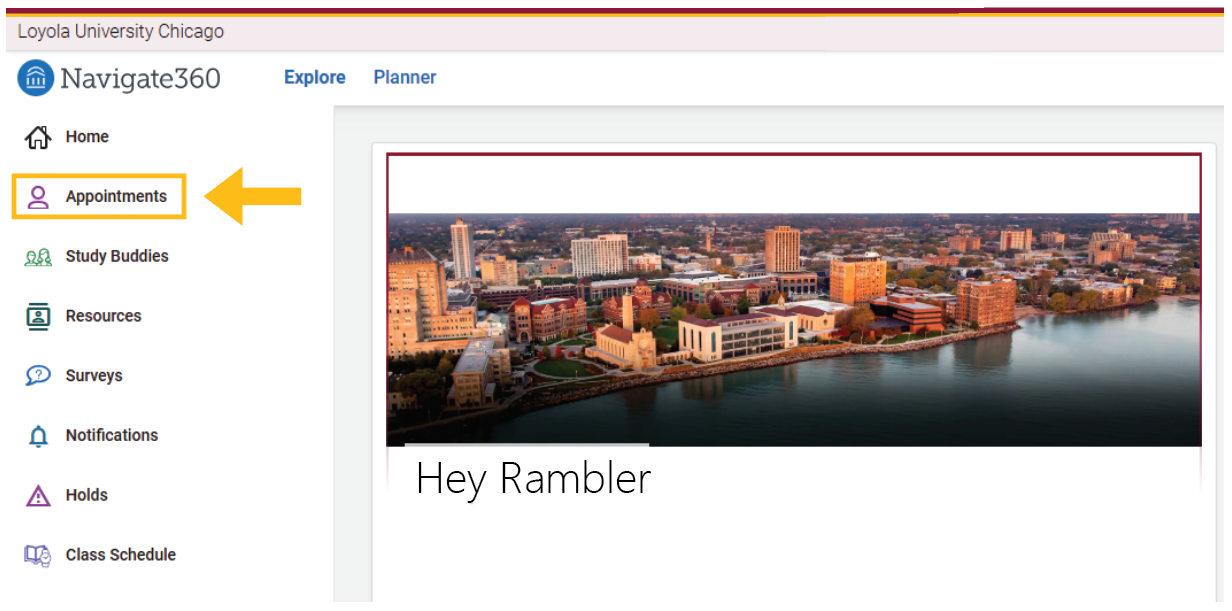
    Graphic showing where to click
  3. If the appointment is with an assigned advisor, you can click on the "My Team" tab and see advisors assigned to you in Navigate360. You can click on one of these people's names to schedule an appointment directly with them.
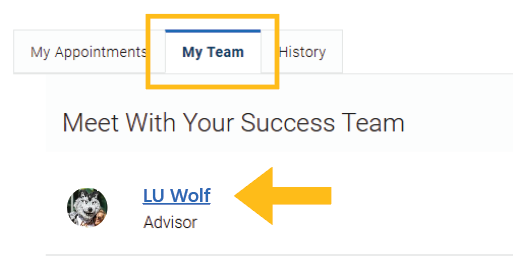
    Graphic showing where to click
  4. If you don't see the person you want to meet with, for example you want to meet with a Study Abroad Advisor, clink on the "Make an Appointment" button on the upper right.

    Graphic showing where to click
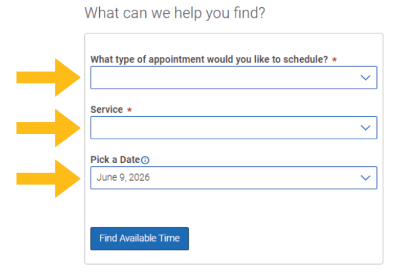
  5. Choose the "Appointment Type" and subsequent "Service" from the dropdowns. Then select a date you'd like to have an appointment (this can be days/months in the future).
  6. A list of the next available days and times will generate. Select an appointment that works for you!
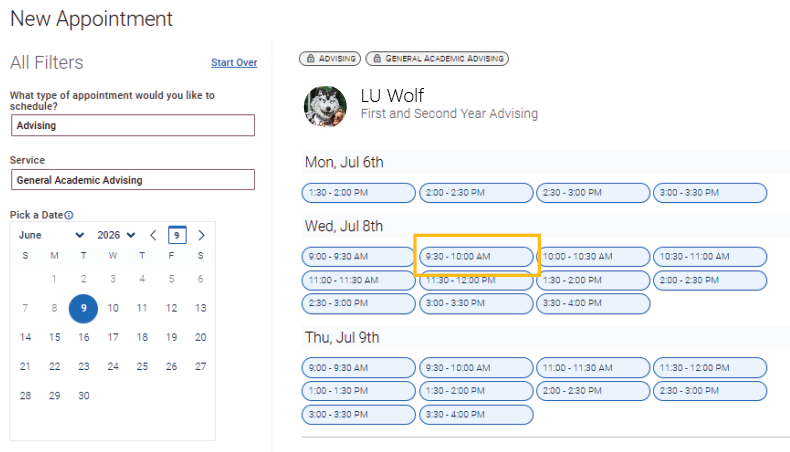
    Graphic showing where to click
  7. Select how you would like to meet (in-person or virtual), tell us what you'd like to discuss at the appointment, verify your reminders, and hit the "Schedule" button.
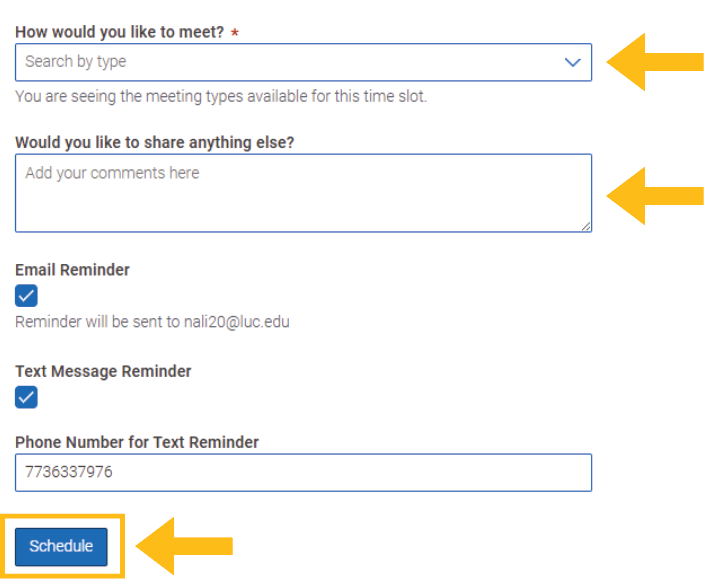
    Graphic showing where to click
  8. Attend your appointment!

Using Navigate360 Student App

  1. From your home screen on the Navigate360 app, click the menu button.
  2. Click "Appointments"
  3. Follow steps 3-7 listed above.
  4. Attend your appointment!


Several offices on campus use Navigate360 for appointment scheduling, this includes all undergraduate academic advising units across campus. Appointments can be scheduled through the Navigate360 Student website as well as the LUC Navigate360 Student app (Apple/Android). Below you will find step by step instructions for scheduling an appointment.

Using Navigate360 Student Website

  1. Access the Navigate360 Student website via www.luc.edu/navigate or luc.navigate.eab.com.
  2. Once you've logging with your LUC SSO credentials, click the "Appointments" tab on the left side
    Graphic showing where to click
  3. If the appointment is with an assigned advisor, you can click on the "My Team" tab and see advisors assigned to you in Navigate360. You can click on one of these people's names to schedule an appointment directly with them.
    Graphic showing where to click
  4. If you don't see the person you want to meet with, for example you want to meet with a Study Abroad Advisor, clink on the "Make an Appointment" button on the upper right.
    Graphic showing where to click
  5. Choose the "Appointment Type" and subsequent "Service" from the dropdowns. Then select a date you'd like to have an appointment (this can be days/months in the future).
  6. A list of the next available days and times will generate. Select an appointment that works for you!
    Graphic showing where to click
  7. Select how you would like to meet (in-person or virtual), tell us what you'd like to discuss at the appointment, verify your reminders, and hit the "Schedule" button.
    Graphic showing where to click
  8. Attend your appointment!

Using Navigate360 Student App

  1. From your home screen on the Navigate360 app, click the menu button.
  2. Click "Appointments"
  3. Follow steps 3-7 listed above.
  4. Attend your appointment!