
Content Types
Page Content Only
Preview This Content TypeAccordion Item
Preview this content typeAccordion Item - Nested
Preview this content typeUniversal Media Card Item
Preview this content type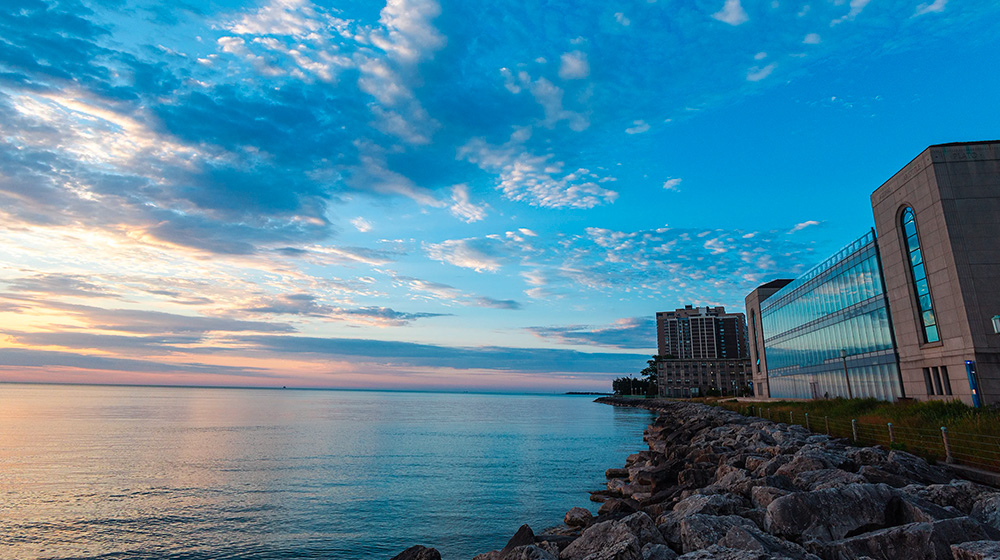
Universal Section Header
Preview this content typeSection Template
Preview this content typeUniversal Intro Text
Preview this content typeImage Content
Preview this content type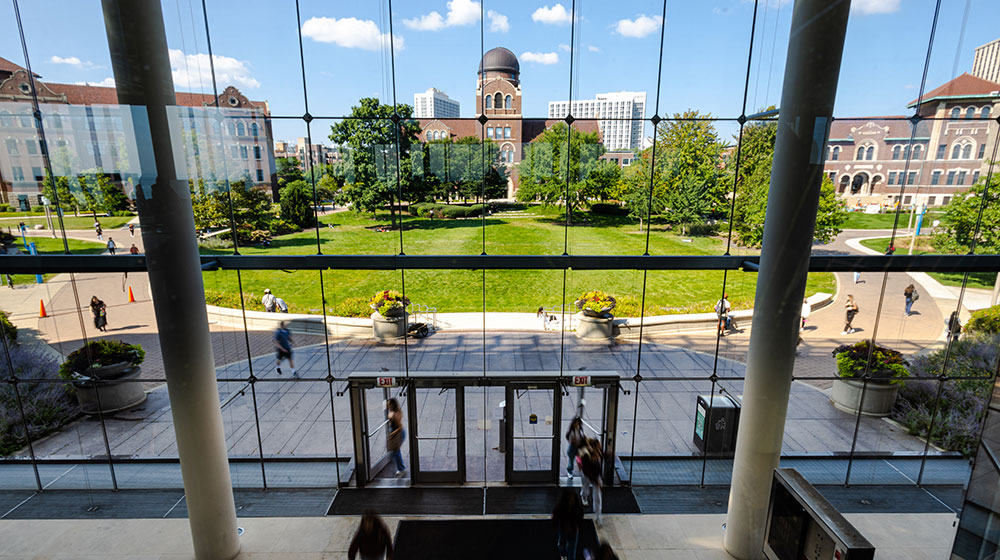
Universal Statistic Item
Preview this content typeUniversal Image with Caption
Preview this content type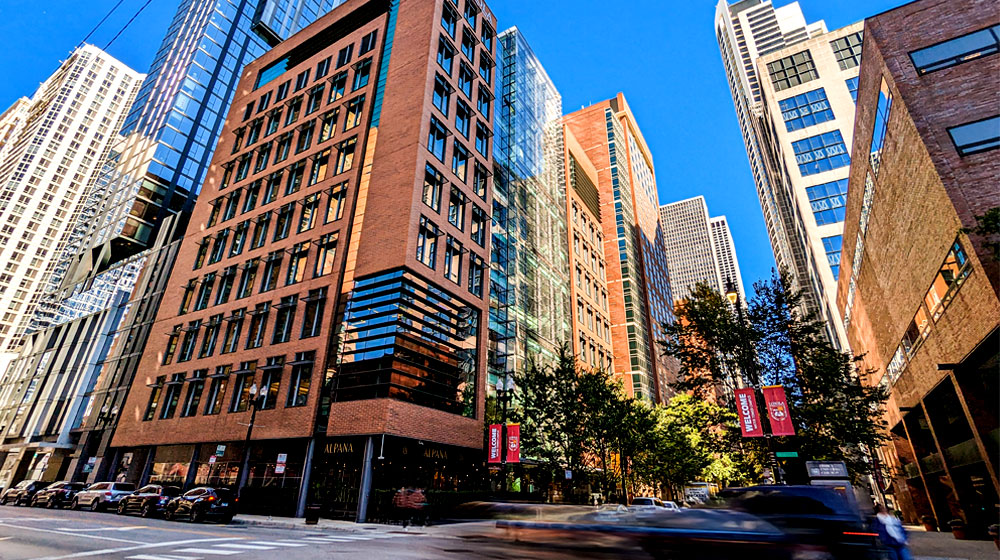
Universal Button Text
Preview this content typeUniversal LGS Buttons
Preview this content typeUniversal Panel Button CTA
Preview this content typeUniversal Buttons Panel
Preview this content typeUniversal Blockquote
Preview this content typeUniversal Blockquote with Image Overlay
Preview this content type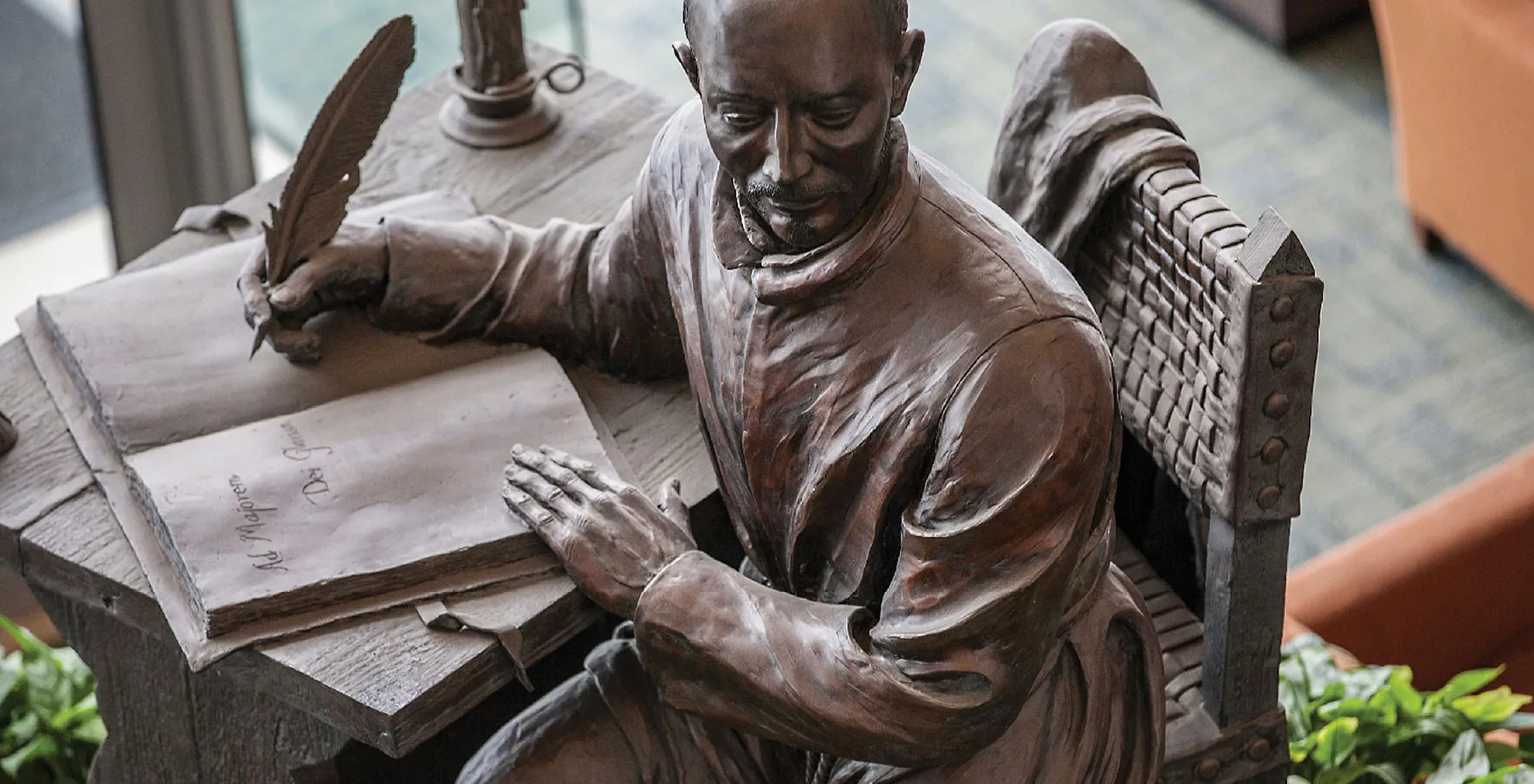
Universal Infobox
Preview this content typeUniversal Video Card Item
Preview this content typeUniversal Refer Panel
Preview this content type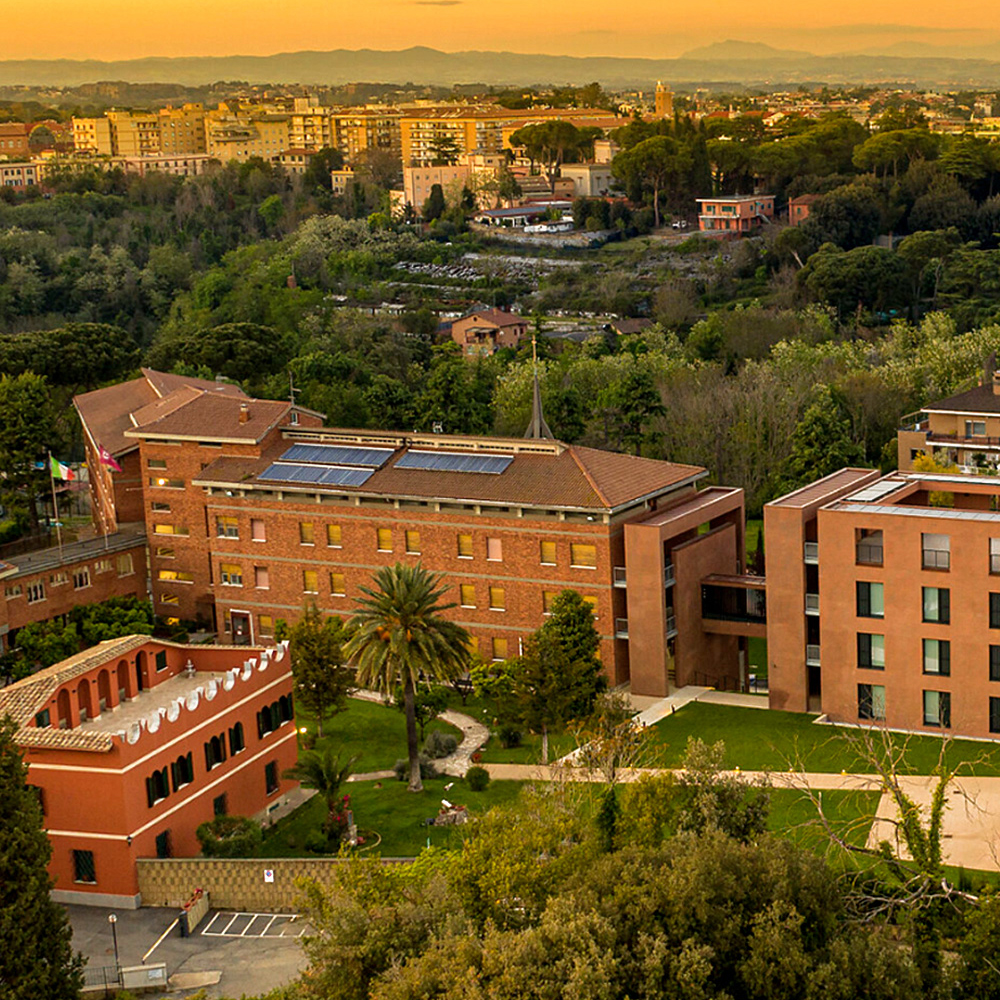
Universal 2 Column Image Left or Image Right
Preview this content type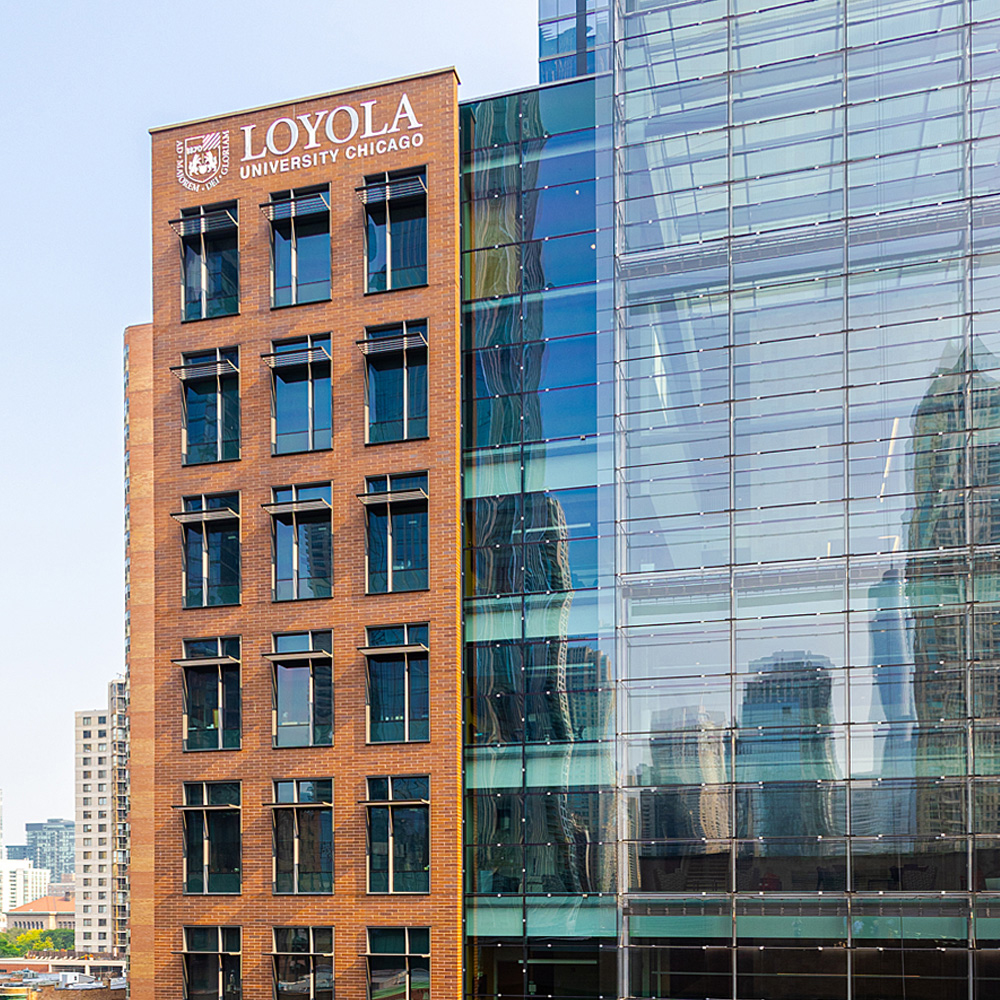

Audio File Embed
Preview this content typeUniversal List Card Item
Preview this content typeTable Accordion
Preview this content typeTabs Ensemble
Preview this content type


Image Group
Preview this content type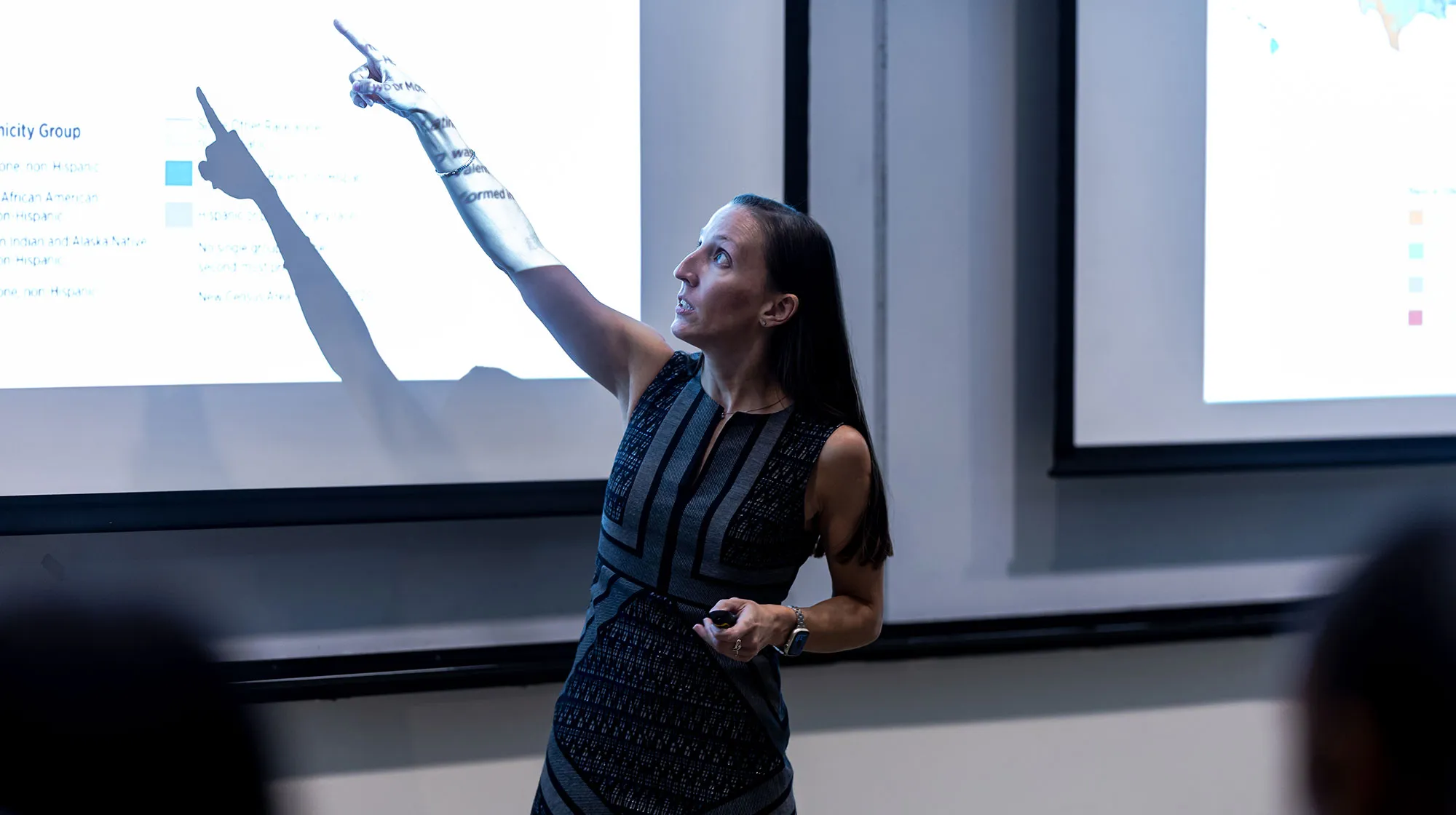
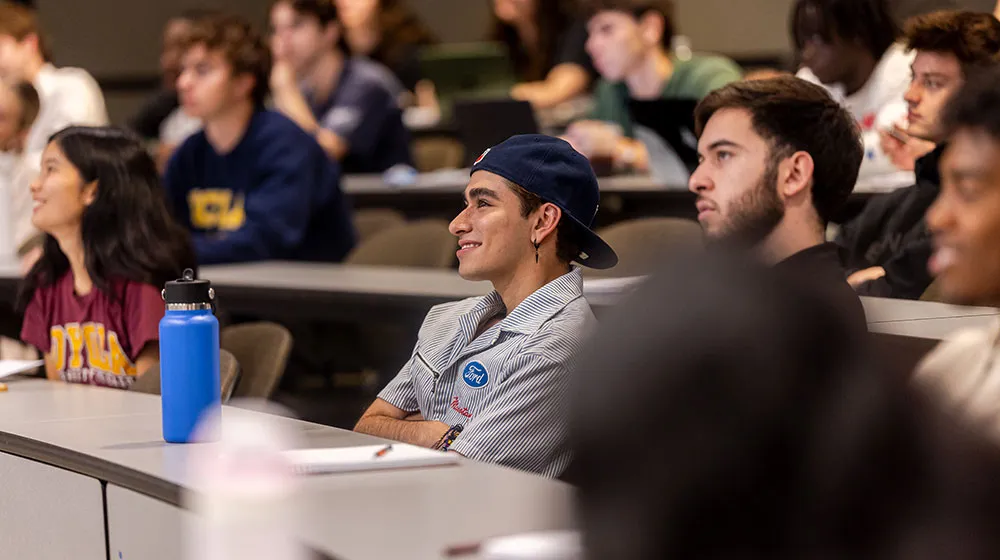

This following content types require the full page view for proper context:
- Universal Hero Image
- Lead Image
- Feature Link + Feature Story (V1 vertical display pulled in an aggregate page)
- Feature Link + Feature Story (V2 horizontal display pulled in an aggregate page)
- Staff Profile (displayed w/ fulltext layout)
- Directory Feed (content type used to pull Staff Profile content pieces to display in an aggregate page as cards; when clicked, the fulltext layout of the staff profile is displayed)
- Directory Feed (V1 displays w/ custom button filters)
- Directory Feed (V2 displays w/ the search bar + filter dropdown options)
- Simple Link (located at the top right section of the template; in i icon (iLinks/quicklinks) dropdown)
- Recruitment Links (located at the top navigation, right section of the template: Apply, Info, Visit)
- Feature Multiple Links (in modules_programming and right_column)
- Social Networking Links (these are the floating social media icons on the left side of the template; when you scroll down on the page, these icons move to the footer section)
- Universal Programming Panel (in modules_programming)
- Universal Audience Nav (located at the top left of the template: Prospective Students, Current Students, Alumni)
- Universal News Panel (displays as media cards on homepages)
- Universal Hero Video
- Universal Announcement Bar (displays in a maroon bar at the top portion of the template, below the site logo and above the top menu navigation bar)